Modern operating systems frequently balance productivity features with extensive data collection, and Microsoft’s flagship platform is no exception. Out of the box, the operating system arrives bundled with dozens of pre-installed consumer applications, background services, and continuous diagnostic telemetry streams. Learning how to debloat windows 11 and disable telemetry privacy risks allows you to reclaim system resources, reduce background network noise, and significantly harden your digital privacy.
Understanding Windows 11 Bloatware and Telemetry
Before executing configuration changes, it is critical to understand what you are modifying. Windows “bloatware” generally refers to third-party games, promotional consumer applications (often referred to as crapware), and integrated system widgets that consume persistent memory and CPU cycles without adding enterprise-grade utility.
Telemetry, on the other hand, represents the systemic collection of diagnostic data, user interaction metrics, and crash dumps transmitted back to Microsoft servers. While telemetry aims to improve software stability, it introduces significant privacy concerns for individuals and organizations handling sensitive data. Minimizing this data footprint requires targeted interventions across the Windows registry, Group Policy editor, and PowerShell environment.
Step 1: Removing Consumer Bloatware via PowerShell
Many pre-installed applications cannot be removed through the standard graphical settings interface. Utilizing PowerShell commands allows administrators to strip out unwanted Universal Windows Platform (UWP) packages safely and permanently.
Open PowerShell with administrative privileges and execute the following snippet to list and remove non-essential provisioned applications:
# Remove specific pre-installed consumer packages
Get-AppxPackage *Microsoft.XboxApp* | Remove-AppxPackage
Get-AppxPackage *Microsoft.Getstarted* | Remove-AppxPackage
Get-AppxPackage *Microsoft.ZuneMusic* | Remove-AppxPackage
Always verify package names before executing broad wildcard removals to avoid stripping core utilities like the calculator or the Windows Terminal.
Step 2: Disabling Diagnostic Telemetry and Data Collection
To fundamentally restrict the operating system from tracking usage data, you must configure the connected user experiences and telemetry service. For Windows 11 Pro and Enterprise users, the Local Group Policy Editor provides a centralized control mechanism.
- Press Win + R, type
gpedit.msc, and hit Enter. - Navigate to Computer Configuration > Administrative Templates > Windows Components > Data Collection and Preview Builds.
- Locate the policy titled Allow Telemetry and set it to Enabled, configured with the option 0 – Security [Enterprise Only] (or 1 – Basic on Home editions if Enterprise policies are unavailable).
For systems lacking the Group Policy Editor, equivalent registry modifications can be applied directly.
# Disable Telemetry via Registry Key
Set-ItemProperty -Path "HKLM:\SOFTWARE\Policies\Microsoft\Windows\DataCollection" -Name "AllowTelemetry" -Value 0 -Type DWord
Step 3: Stopping Background Diagnostic Services
Several background services persistently process diagnostic logs and telemetry payloads. Disabling these services via the Windows Services manager (services.msc) halts unnecessary background execution:
- Connected User Experiences and Telemetry (
DiagTrack): Manages telemetry events. Set startup type to Disabled. - Diagnostics Tracking Service: Collects functional performance data. Set startup type to Disabled.
- WAP Push Message Routing Service: Often utilized for targeted marketing and notification streams.
Step 4: Managing Cortana, Bing Search, and Advertising IDs
Operating system integration often extends web searches directly to the taskbar, leaking local queries to external servers. To secure search behavior and disable behavioral ad tracking:
- Disable web search integration in the taskbar by modifying the registry subkey under
HKCU\Software\Policies\Microsoft\Windows\Explorerby settingDisableSearchBoxSuggestionsto1. - Disable the unique Advertising ID used by applications to serve personalized advertisements via the Windows Privacy settings interface.
Frequently Asked Questions
Will debloating Windows 11 break system updates?
No. Selectively removing consumer applications and restricting diagnostic telemetry does not interfere with critical cumulative security patches or driver updates. However, avoid disabling the core Windows Update service.
Is it necessary to use third-party debloating scripts?
While automated GitHub scripts offer convenience, they can sometimes cause unintended instability or break future system updates. Executing manual PowerShell commands and Group Policy adjustments provides precise, transparent control over your environment.
Can telemetry settings revert after a major Windows update?
Yes. Major feature updates (such as annual build upgrades) occasionally reset specific registry keys and telemetry preferences to default states. It is recommended to audit your privacy configurations following major OS upgrades.
By systematically stripping unwanted applications, disabling diagnostic data streams, and hardening background services, you can achieve a lean, highly performant, and privacy-respecting computing environment. Take control of your hardware infrastructure today and maintain continuous vigilance over your software configurations.
Recommended Hardware for Security & Privacy
Zero-trust physical keys, encrypted offline storage, and privacy shields recommended by IT pros.

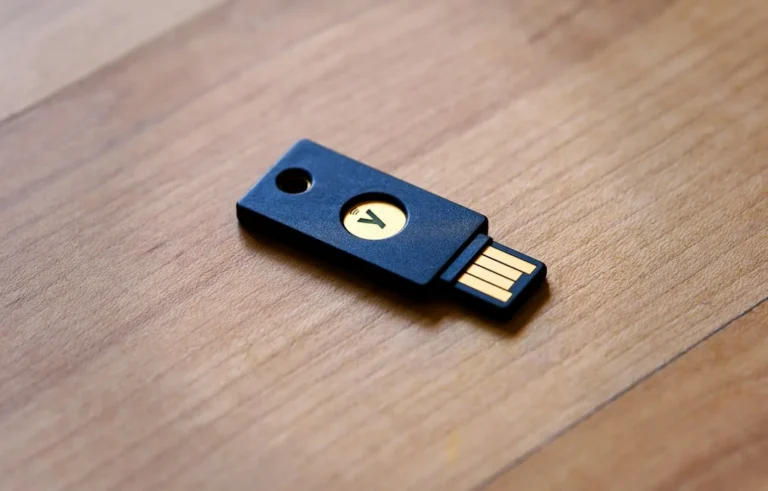
YubiKey 5 NFC Hardware Security Key
FIDO2 and WebAuthn certified. Provides unbreakable phishing-proof two-factor authentication for password managers and cloud accounts.
Apricorn / Kingston Encrypted USB Flash Drive
Hardware-based AES-256 encryption with physical keypad PIN. Keeps your password database and private keys physically secure.
Ultra-Thin Webcam Privacy Cover Sliders (6-Pack)
Micro 0.027-inch sliding shutter. Mechanically prevents camera snooping and accidental video leaks on laptops and monitors.
Mission Darkness Faraday Signal Blocking Bag
Military-grade RF shielding. Instantly blocks cellular 5G, GPS tracking, Wi-Fi, Bluetooth, and RFID signals from your phone.
Disclosure: BriteHacks is reader-supported. When you buy through links on our site or deploy infrastructure, we may earn an affiliate commission at no extra cost to you. As an Amazon Associate, we earn from qualifying purchases.