Accidentally deleting cherished memories or critical files from a smartphone is a stressful experience, but modern mobile operating systems feature built-in safety nets designed to prevent permanent data loss. When you tap the delete button on your mobile device, the file is rarely erased from the flash storage immediately. Instead, advanced file system management marks the data blocks as available while retaining the actual bits until the system needs to overwrite them.
Whether you are trying to recover deleted photos smartphone users have access to native recovery folders, cloud backups, and third-party utility workflows. Understanding how mobile storage works allows you to maximize your chances of recovering lost data safely and efficiently.
Understanding Mobile Storage and Data Deletion
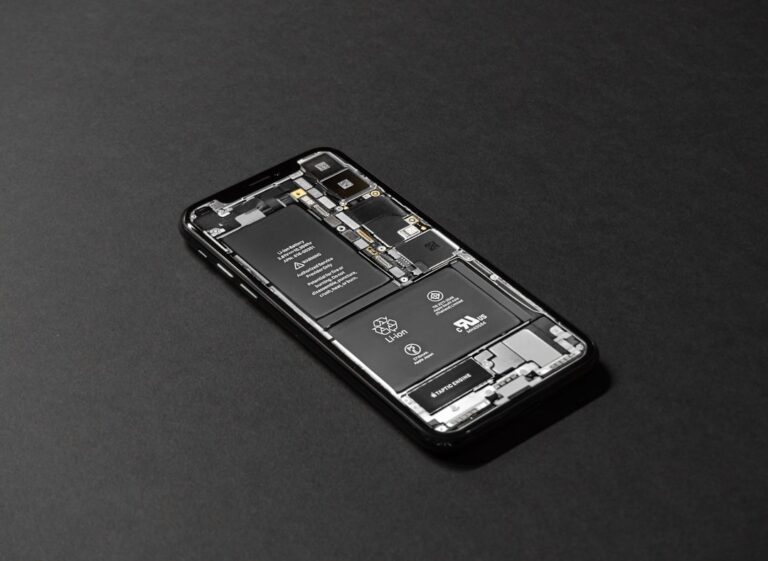
Before executing any recovery procedures, it is vital to understand how Android and iOS handle file deletion. Both platforms utilize flash memory (NAND storage) managed by sophisticated file systems (such as APFS on iOS and ext4 or F2FS on Android).
- Soft Deletion: When you delete a file through the gallery or file manager, the operating system moves it to a temporary staging area (such as the Recently Deleted album). The file remains intact for a predefined retention period, typically 30 days.
- Hard Deletion: Once the retention period expires, or if you bypass the staging area, the file pointer is removed, and the storage sectors are designated as free space. Until new data overwrites those exact sectors, recovery is often mathematically possible using specialized forensic software.
- The Overwrite Risk: Continued use of the smartphone—such as downloading apps, recording videos, or browsing the web—writes new data to flash storage. This action permanently overwrites the unallocated sectors containing your deleted files, making recovery impossible. Therefore, minimizing device usage immediately after data loss is paramount.
Method 1: Recovering Deleted Photos on iPhone (iOS)
Apple simplifies file recovery through integrated cloud synchronization and strict local staging directories. If you need to recover deleted media on an iOS device, follow these sequential steps.
- Open the Photos app on your iPhone.
- Tap the Albums tab, scroll down to the Utilities section, and select Recently Deleted.
- Authenticate using Face ID, Touch ID, or your device passcode.
- Tap Select, choose the photos you wish to restore, and tap Recover in the bottom right corner (or choose Recover All).
If the photos were deleted from the Recently Deleted album, check your iCloud account. Log into iCloud.com via a desktop browser, navigate to Photos, and check the Recently Deleted folder there. Additionally, check your iCloud Backup status; restoring the iPhone to a previous backup can recover older files, though it risks overwriting newer data added since the backup date.
Method 2: Recovering Deleted Files and Photos on Android
Android’s fragmentation across different manufacturers (Samsung, Google Pixel, Motorola) means recovery steps can vary slightly, but the core mechanics remain consistent.
- Open the Google Photos app or your device’s native Gallery application.
- Tap on the Library tab at the bottom, then select Trash (or Bin).
- Long-press the photos or files you want to retrieve.
- Tap Restore to return the items to your main gallery or file directory.
For non-photo files (documents, PDFs, archives), open the default Files by Google application or your manufacturer’s native file manager, open the sidebar menu, select Trash, and restore the desired files.
Leveraging Cloud Backups and Third-Party Services
If local recovery options fail, cloud infrastructure provides the next best safety net. Most users have secondary synchronization enabled without realizing it.
Android/media/ to see if cached thumbnails or copies still exist.Best Practices to Prevent Future Data Loss
Mitigating future data loss requires implementing a robust, automated backup strategy. Relying on local storage alone leaves your data vulnerable to hardware failure, loss, or theft.
- Enable automated background cloud backups via Google Photos, iCloud, Microsoft OneDrive, or Dropbox.
- Periodically export critical documents and media to local cold storage, such as an external solid-state drive (SSD) or a personal Network Attached Storage (NAS) device.
- Exercise caution when clearing cache files or running aggressive smartphone optimization and cleaner utilities.
Frequently Asked Questions
Can I recover permanently deleted photos without a backup?
Yes, but success depends on whether the storage sectors have been overwritten. If the files were hard-deleted and the retention period expired, you may need to use reputable desktop-based recovery software (such as Disk Drill or Dr. Fone) connected via USB with USB Debugging enabled. However, these tools are not foolproof and often require root or jailbreak access on modern encrypted file systems.
Does factory resetting my smartphone destroy all recoverable data?
Modern smartphones utilize hardware-based file encryption (AES-256). When you perform a factory reset, the cryptographic keys are destroyed, rendering the underlying ciphertext completely unreadable. Consequently, a standard factory reset effectively neutralizes forensic data recovery risks.
How long do photos stay in the Recently Deleted folder?
By default, both iOS and Android retain deleted photos and videos in their respective trash bins for 30 days. After this window expires, the operating system automatically purges the files to reclaim storage space.
Data loss can disrupt workflows and erase irreplaceable memories, but prompt action drastically increases your recovery success rate. Always check native trash directories first, verify your cloud backups, and minimize device activity immediately if a manual recovery is required. Secure your digital assets today by configuring automated cloud syncs, ensuring you never have to worry about lost files again.
Recommended Mobile Gear for Battery & Storage
Tested accessories to protect battery lifespan, expand device storage, and charge reliably.

Anker 30W USB-C GaN Fast Charger
Dynamic PowerIQ 3.0 delivery. Charges iPhone and Android at high speeds while keeping temperatures low to preserve battery lifespan.
SanDisk Dual Drive USB-C Flash Drive (128GB/256GB)
High-speed dual USB-C/USB-A connector. Directly offload photos, 4K videos, and system cache to free up phone storage instantly.
Anker MagGo 10,000mAh Magnetic Power Bank
Ultra-slim Qi2 certified magnetic wireless charger with a smart display. Keep your smartphone charged throughout the day.
Anker Bio-Braided USB-C Cable (2-Pack, 240W)
Lab-tested for 20,000+ bends. Prevents voltage drops and erratic currents that slowly degrade smartphone charging ports.
Disclosure: BriteHacks is reader-supported. When you buy through links on our site or deploy infrastructure, we may earn an affiliate commission at no extra cost to you. As an Amazon Associate, we earn from qualifying purchases.