Modern smart home ecosystems often suffer from fragmentation, cloud dependencies, and privacy concerns. Proprietary platforms frequently lock users into restrictive walled gardens, making local automation unreliable when internet connectivity drops. Home Assistant provides a powerful, open-source alternative that runs entirely on your local hardware, giving you absolute control over your smart home devices without sacrificing speed, security, or privacy.
This comprehensive home assistant raspberry pi getting started guide walks you through transforming single-board computers or mini PCs into a centralized, resilient smart home hub. By the end of this tutorial, you will have a fully functioning local automation server capable of integrating thousands of devices across different communication protocols.
Understanding Home Assistant Architecture
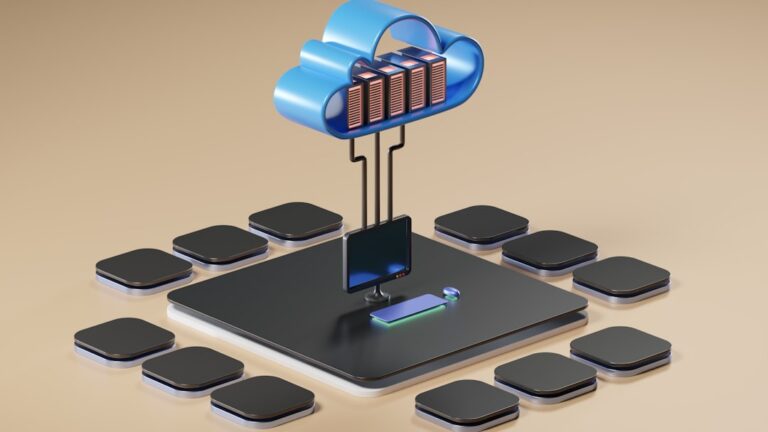
Before diving into installation, it helps to understand what makes Home Assistant unique. Unlike commercial hubs that rely on remote cloud servers to process automation logic, Home Assistant executes everything locally on your local area network (LAN). This local-first architecture ensures that:
- Maximum Privacy: Your sensitive telemetry, camera feeds, and voice commands never leave your home network.
- Lightning-Fast Execution: Automations trigger instantly because requests do not travel to an external cloud API and back.
- Unmatched Reliability: Your smart lights, switches, and sensors continue operating seamlessly even during internet service outages.
Choosing Your Hardware: Raspberry Pi vs. Mini PC
Selecting the right hardware is the foundational step in your self-hosting journey. Two primary options dominate the landscape: the Raspberry Pi and the Mini PC.
Raspberry Pi (Models 4 and 5)
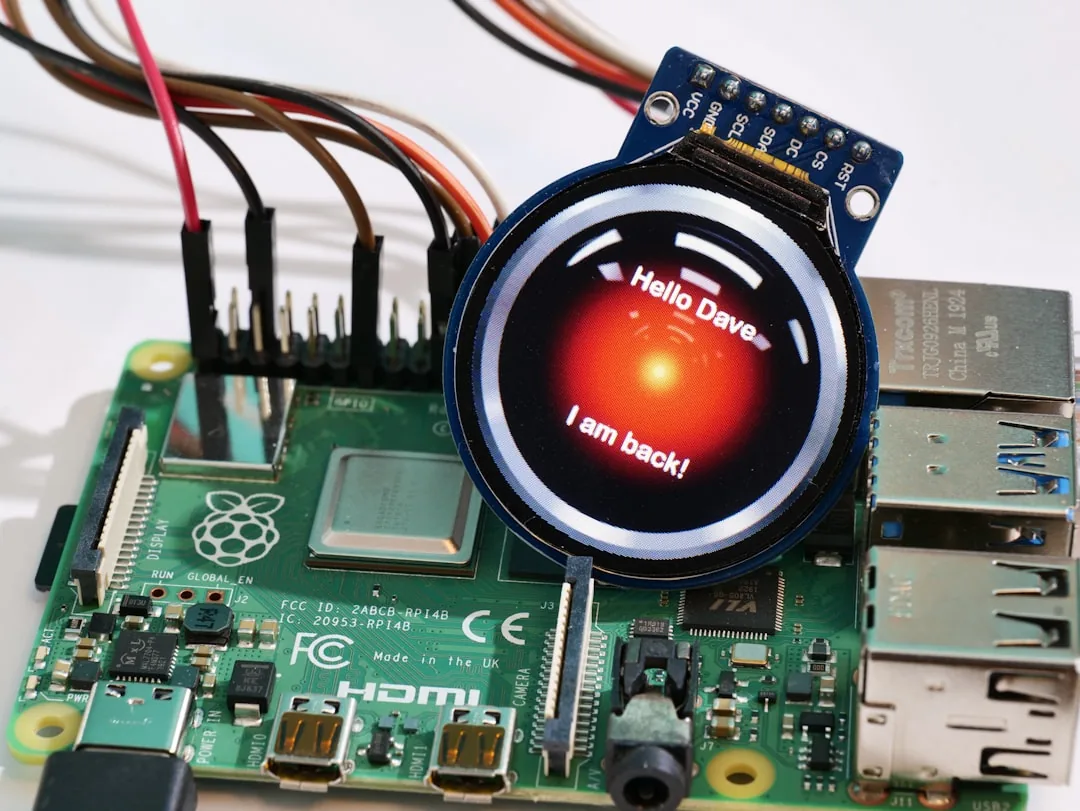
The Raspberry Pi series remains the iconic choice for IoT enthusiasts due to its remarkably low power consumption, compact form factor, and active community support. A Raspberry Pi with 4GB or 8GB of RAM handles dozens of integrations, dashboard rendering, and light automation scripts with ease.
x86 Mini PC
For advanced setups involving multiple security cameras, Frigate NVR video processing, or heavy database logging, an entry-level x86 Mini PC (such as an Intel N100 or refurbished office mini PC running SSD storage) offers superior CPU performance, expandability, and long-term durability over microSD cards.
Step-by-Step Installation Guide
The recommended installation method for most users is Home Assistant OS (HAOS). This bare-metal operating system includes the Home Assistant Supervisor, which simplifies backups, system updates, and the installation of companion add-ons like Zigbee2MQTT and Node-RED.
- Prepare the Storage Medium: Download the official Home Assistant OS image corresponding to your hardware board from the Home Assistant documentation repository. Flash the image onto your microSD card (for Raspberry Pi) or NVMe/SATA SSD (for Mini PCs) using a reliable flashing utility like BalenaEtcher.
- Connect Peripherals: Insert the storage medium into your device, connect an Ethernet cable for a stable network connection, and plug in the power supply. Avoid relying solely on Wi-Fi during initial setup to ensure a dependable connection.
- Boot and Initialize: Power on the device. The system will automatically download necessary updates and configure containers. Allow approximately 10 to 20 minutes for the initial boot process to complete.
- Access the Web Interface: Open a web browser on a computer connected to the same network and navigate to:
http://homeassistant.local:8123 - Create Your Account: Follow the on-screen setup wizard to create your administrative profile, name your smart home, and set your geographic location for weather-based automations.
Essential Post-Installation Best Practices
Once your dashboard loads, configure these core elements to ensure a stable long-term experience:
Frequently Asked Questions
Can I run Home Assistant without an internet connection?
Yes. Home Assistant is designed to function entirely offline. Local integrations, automations, and local voice assistants operate locally on your LAN. An internet connection is only required for external remote access, weather forecasts, and downloading software updates.
Is a Raspberry Pi reliable enough for long-term use?
While Raspberry Pi devices are remarkably capable, standard microSD cards can wear out prematurely due to constant database writing. To ensure longevity, always use high-end endurance microSD cards or, ideally, boot your Raspberry Pi from a USB-attached Solid State Drive (SSD).
How do I access Home Assistant securely from outside my home?
The most secure and recommended method for remote access is subscribing to Home Assistant Cloud (Nabu Casa), which supports encrypted remote access and voice assistants out of the box while financially supporting the open-source project. Alternatively, you can configure a self-hosted VPN like WireGuard or a reverse proxy.
Conclusion and Next Steps
Deploying Home Assistant on a Raspberry Pi or Mini PC marks the beginning of a truly private, responsive, and infinitely customizable smart home journey. By taking control of your local infrastructure, you escape the limitations of corporate cloud ecosystems while unlocking advanced automation capabilities.
Begin by connecting your most frequently used devices, build your first basic automations, and explore the vast world of community-driven integrations. Take the plunge into local self-hosting today and experience what a truly intelligent home can achieve!
Recommended Hardware for This Setup
Tested, power-efficient gear curated for 24/7 home servers, Docker containers, and local labs.

Intel N100 Mini PC (16GB RAM, 500GB SSD)
Whisper-quiet, ultra-low 6W idle power. The undisputed favorite for 24/7 Docker, Jellyfin hardware transcoding, and Proxmox.
Raspberry Pi 5 (8GB Starter Kit)
Blazing quad-core ARM performance. Ideal for dedicated Pi-hole ad-blocking, WireGuard mesh nodes, and lightweight automation.
Crucial P3 Plus 1TB/2TB PCIe 4.0 NVMe
Up to 5000MB/s speeds. Essential for high-IOPS database operations, Docker container images, and snappy Nextcloud sync.
TP-Link 8-Port Gigabit Switch (TL-SG108)
Silent fanless steel housing, plug-and-play, traffic prioritization (QoS). Essential for wiring up your Home Server, NAS, and Pi with zero Wi-Fi lag.
Disclosure: BriteHacks is reader-supported. When you buy through links on our site or deploy infrastructure, we may earn an affiliate commission at no extra cost to you. As an Amazon Associate, we earn from qualifying purchases.