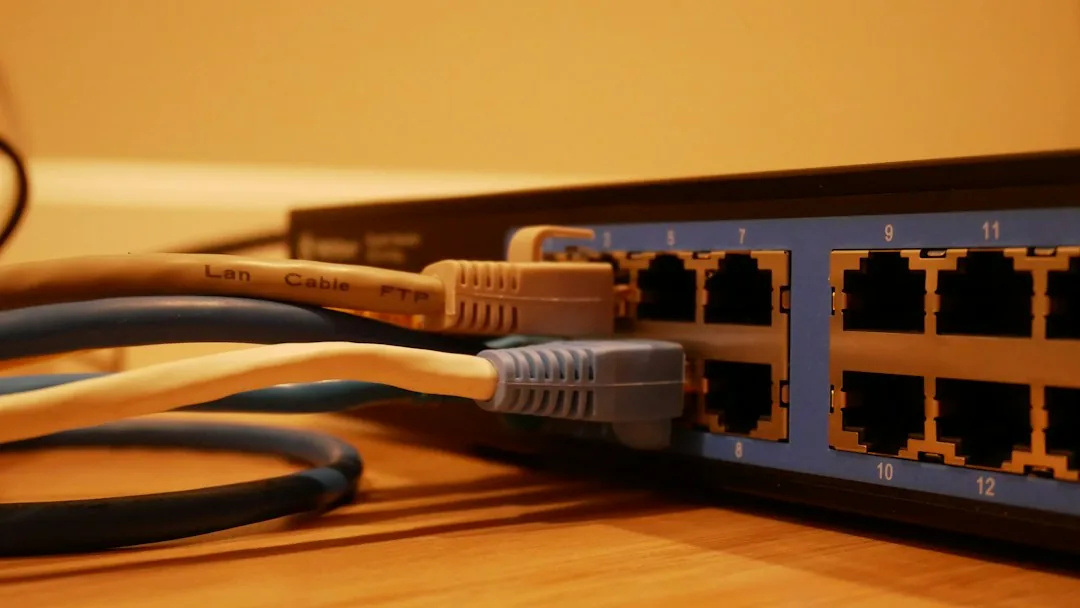
Deploying a robust perimeter defense is foundational to modern network architecture. Consumer-grade routers frequently fall short of enterprise security demands, lacking advanced packet inspection, intrusion detection, and granular traffic segmentation. This comprehensive opnsense firewall setup guide walks you through deploying and configuring an enterprise-grade hardware firewall using OPNsense, an open-source, hardened FreeBSD-based security platform designed to protect your infrastructure against sophisticated cyber threats.
Understanding Network Architecture and Hardware Requirements
Before initiating the installation, designing your network topology is crucial. A standard secure deployment utilizes a minimum of two physical network interfaces: one dedicated to the Wide Area Network (WAN/external) and another for the Local Area Network (LAN/internal). Advanced configurations often incorporate a third interface for a Demilitarized Zone (DMZ) to isolate publicly accessible services from private network assets.
Hardware Considerations
- CPU: 64-bit multi-core processors with AES-NI hardware encryption support are mandatory to handle high throughput VPNs and deep packet inspection efficiently.
- Network Interface Cards (NICs): Intel-based Gigabit or 10-Gigabit NICs (such as the I350 or X550 series) offer the highest stability and driver compatibility within FreeBSD environments. Realtek chips should generally be avoided for mission-critical setups.
- RAM: 4GB of ECC RAM is recommended for baseline operations, scaling up to 8GB or higher if running resource-intensive packages like Suricata (IDS/IPS) or ClamAV.
Step 1: Installation and Initial Interface Assignment
Download the official OPNsense ISO or VGA installer image, flash it to a bootable USB drive using a utility like Rufus or Ventoy, and connect your hardware appliance to a monitor and keyboard. Boot from the installer and log in using the default credentials (username: installer, password: opnsense).
Follow the wizard prompts to install OPNsense to your target solid-state drive (SSD). Upon completion and reboot, the system prompts you to assign physical network interfaces:
- Identify your WAN interface name (e.g.,
em0origb0) and assign it to the WAN role. - Assign your internal interface to the LAN role (e.g.,
em1origb1). - Save the configuration to generate the initial firewall ruleset.
Step 2: Accessing the Web GUI and Initial Hardening
Connect a client machine to the LAN port. The appliance acts as a DHCP server, assigning your client an IP address within the default 192.168.1.0/24 subnet. Navigate to https://192.168.1.1 in your web browser, bypass the self-signed certificate warning, and log in with the default administrator credentials (root / opnsense).
Upon your first login, the Setup Wizard launches automatically. Perform these essential baseline hardening steps:
- Change Default Credentials: Immediately create a new administrative user with a strong password and disable or restrict the default root account.
- Secure Management Access: Navigate to System > Settings > Administration. Change the default HTTPS port, restrict administrative access to specific internal IP addresses or VLANs, and enforce strong cryptographic ciphers.
- Configure Time Synchronization (NTP): Ensure accurate system time under System > Settings > General to maintain valid TLS certificates and reliable security log timestamps.
Step 3: Configuring Firewall Rules and Traffic Segmentation
OPNsense operates on a strict default-deny principle for inbound traffic and a default-allow principle for outbound traffic. To establish a secure perimeter, you must tailor these rules to your organizational needs.
Navigate to Firewall > Rules. Best practices dictate implementing network segmentation using VLANs:
- Isolate Internet of Things (IoT) devices onto a dedicated VLAN with restricted internet access and zero visibility into the primary LAN.
- Establish inter-VLAN firewall rules blocking guest networks from communicating with core administrative storage servers.
- Explicitly log blocked packets to aid in troubleshooting and threat hunting.
Step 4: Enabling Intrusion Detection (IDS/IPS)
To transition your firewall from a reactive packet filter to an active threat prevention system, configure the built-in Intrusion Detection System powered by Suricata.
- Go to Services > Intrusion Detection > Administration.
- Check Enable and select your WAN interface as the inspection target.
- Set the operational mode to Inline Mode (IPS) to actively drop malicious packets rather than simply alerting on them.
- Navigate to the Download tab, select robust rule providers such as Emerging Threats (ET) Open, and click Download Rules.
- Schedule a daily cron job under the Target tab to keep your threat intelligence signatures up to date.
Frequently Asked Questions
Can I run OPNsense on virtualized hardware instead of bare metal?
Yes. OPNsense runs exceptionally well inside hypervisors like Proxmox VE, VMware ESXi, or bhyve. However, for maximum security and performance stability in enterprise environments, dedicated bare-metal hardware remains the gold standard to prevent hypervisor-level vulnerabilities from exposing your firewall perimeter.
What is the difference between pfSense and OPNsense?
Both distributions originate from the same historical codebase (m0n0wall/pfsense lineage). OPNsense features a modern, responsive MVC-based web user interface, a more frequent release schedule, native support for hardened security features like LibreSSL alternatives, and a fully open-source licensing model with community-driven transparency.
How do I safely update OPNsense without breaking network connectivity?
OPNsense includes a robust firmware upgrade utility located under System > Firmware > Status. Before initiating major upgrades, always take a configuration backup (System > Configuration > Backup) and, if running a virtualized instance, capture a hypervisor snapshot to enable instant rollback if needed.
Conclusion
Implementing a hardware firewall using OPNsense delivers enterprise-grade perimeter security, granular traffic visibility, and absolute control over your network infrastructure. By carefully planning your physical interfaces, hardening administrative access, enforcing strict firewall rules, and deploying inline intrusion prevention, you establish a resilient defense against evolving cyber threats. Take the next step in your network security journey by deploying OPNsense today and continuously monitoring your system logs to maintain optimal posture.
Recommended Hardware for Security & Privacy
Zero-trust physical keys, encrypted offline storage, and privacy shields recommended by IT pros.

YubiKey 5 NFC Hardware Security Key
FIDO2 and WebAuthn certified. Provides unbreakable phishing-proof two-factor authentication for password managers and cloud accounts.
Apricorn / Kingston Encrypted USB Flash Drive
Hardware-based AES-256 encryption with physical keypad PIN. Keeps your password database and private keys physically secure.
Ultra-Thin Webcam Privacy Cover Sliders (6-Pack)
Micro 0.027-inch sliding shutter. Mechanically prevents camera snooping and accidental video leaks on laptops and monitors.
Mission Darkness Faraday Signal Blocking Bag
Military-grade RF shielding. Instantly blocks cellular 5G, GPS tracking, Wi-Fi, Bluetooth, and RFID signals from your phone.
Disclosure: BriteHacks is reader-supported. When you buy through links on our site or deploy infrastructure, we may earn an affiliate commission at no extra cost to you. As an Amazon Associate, we earn from qualifying purchases.