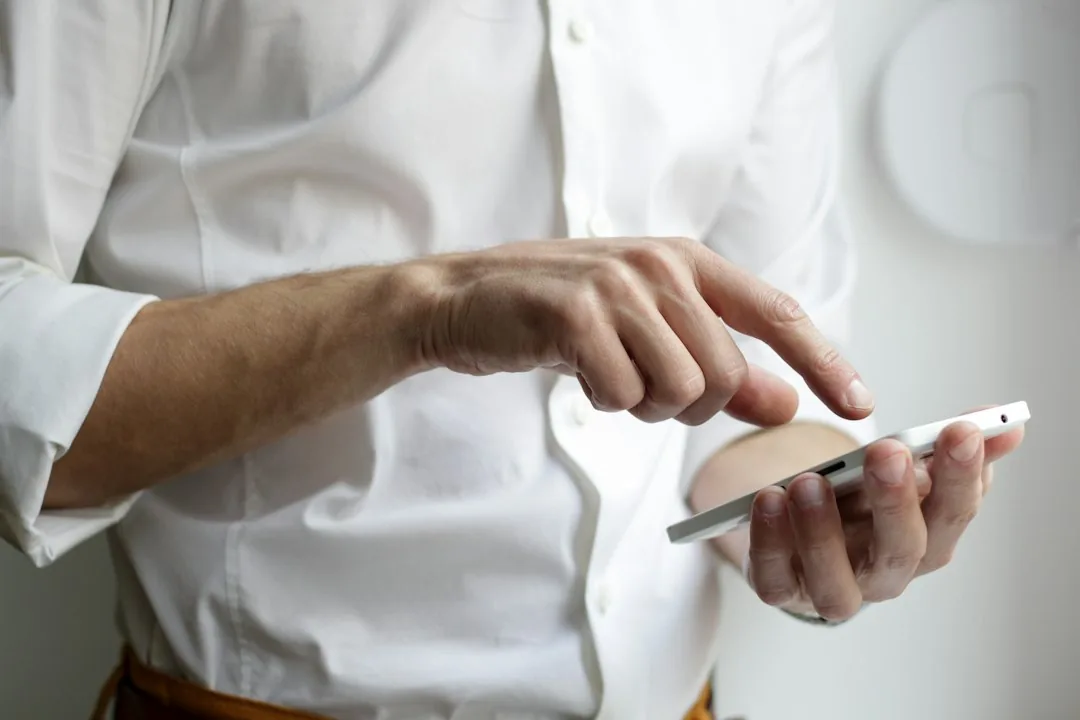
Smart home ecosystems have revolutionized how we interact with our living spaces, but triggering those automated routines often requires manual taps on a smartphone screen, voice commands that disrupt conversations, or reliance on expensive motion sensors. Enter Near Field Communication (NFC) technology: a reliable, physical, and lightning-fast alternative for smart home control. By utilizing nfc automation routines smartphone configurations, you can bridge the physical and digital worlds, executing complex multi-device smart home sequences with a simple tap of your phone.
Understanding NFC Technology in Smart Homes
Near Field Communication is a set of short-range wireless technologies, typically requiring a distance of 4 centimeters or less to establish a connection. Operating at 13.56 MHz, NFC chips (specifically NFC tags) do not require a power source of their own. Instead, they operate via passive radio-frequency identification (RFID), drawing just enough power from your smartphone’s active NFC field to transmit a tiny payload of data.
This physical requirement is precisely what makes NFC superior for automation. Unlike Wi-Fi or Bluetooth triggers that operate over wide radiuses—sometimes leading to false triggers or latency—an NFC tag requires deliberate human interaction. You choose exactly where the tag lives, giving you absolute control over physical triggers.
Hardware Requirements and Tag Selection
Before diving into setup, you need to assemble the correct hardware. Fortunately, setting up NFC smart home automations is remarkably affordable:
- An NFC-Capable Smartphone: Almost all modern Android devices and Apple iPhone models (iPhone 7 and newer) feature built-in, always-on NFC readers.
- NFC Tags: Look for N213 or N215 adhesive stickers. N215 tags are particularly recommended because they offer 504 bytes of memory, which is more than enough for storing complex webhooks, deep links, or routine identifiers. Avoid ultra-cheap, unbranded tags with tiny memory capacities.
- Automation Software: Apple users will use the native Shortcuts app, while Android users rely on utility applications like MacroDroid, Tasker, or the official Automate app.
Step-by-Step Guide: Setting Up NFC Automations
The exact implementation varies slightly depending on your operating system, but the foundational architecture remains identical: define a physical trigger (scanning the tag) and assign an execution payload (running the smart home routine).
Method 1: Configuring NFC Triggers on iOS
- Open the native Shortcuts application on your iPhone and navigate to the Automation tab at the bottom.
- Tap the + icon in the top right corner to create a new automation, scroll down, and select NFC.
- Tap Scan and hold your iPhone near your chosen NFC tag to register its unique identifier (UID). Name the tag something descriptive, such as “Bedside Night Routine.”
- Add your desired actions. This can range from native HomeKit scenes (turning off lights, locking doors) to running webhooks that communicate with open-source automation servers like Home Assistant.
- Toggle off Ask Before Running to ensure seamless, instantaneous execution without requiring manual confirmation prompts.
Method 2: Configuring NFC Triggers on Android
- Install an automation suite such as MacroDroid or Tasker from the Google Play Store.
- Create a new macro and select Trigger. Navigate to Device Events and select NFC Tag.
- Choose Write Tag or Scan Tag to register your physical sticker with the application.
- Add your actions. You can trigger HTTP requests via plugins like REST APIs, or directly control platforms like Google Home and SmartThings via intent actions.
- Save the macro and place your tag in its designated physical zone.
Advanced Architecture: Integrating Local Smart Home Hubs
While native mobile apps handle simple smart home scenes gracefully, true power users integrate NFC tags with local automation hubs like Home Assistant, openHAB, or Node-RED. By writing a static URL or webhook to an NFC tag using a third-party app like NFC Tools, scanning the tag simply forces your smartphone to ping a secure local endpoint.
# Example webhook payload sent to a local smart home server
POST /api/webhook/nfc_living_room_cinema_mode
Host: homeassistant.local:8123
Authorization: Bearer YOUR_LONG_LIVED_ACCESS_TOKEN
Content-Type: application/json

{
  "action": "trigger",
  "device": "nfc_tag_04a2"
}
This architectural pattern ensures that your smart home automations run locally on your hardware, minimizing cloud latency and preserving your digital privacy.
Creative Real-World Use Cases
Once you understand the mechanics, the deployment opportunities are nearly endless:
- The Bedside Command Center: Stick an NFC tag on your nightstand. Tapping it turns off all house lights, closes motorized blinds, engages the security system, and sets your phone to Do Not Disturb.
- Kitchen Cooking Timer: Place a tag near the stove. Tapping it starts a 20-minute cooking timer and flashes your kitchen smart bulbs in a warm amber hue.
- Guest Wi-Fi Sharing: Program an NFC tag with your guest Wi-Fi network credentials using standard URI formats, allowing visitors to join your network instantly without typing a password.
Frequently Asked Questions
Do NFC tags require batteries to function?
No. NFC tags are entirely passive devices. They contain a tiny microchip and an induction loop antenna that harvests minimal energy from your smartphone’s active NFC radio field during a scan. They will last for decades without maintenance.
Can anyone hack my smart home by scanning my NFC tags?
Security risks are minimal. Most smart home tags rely on your smartphone acting as the authenticated client. If your phone is locked, modern operating systems typically restrict background NFC automations or require the phone to be unlocked and awake to process custom actions or webhooks.
What is the difference between N213 and N215 NFC tags?
The primary difference is data storage capacity. N213 tags offer 144 bytes of usable memory, whereas N215 tags provide 504 bytes. For basic tasks like launching a URL or opening an app, N213 is sufficient. However, for complex smart home routines, encrypted payloads, or vCards, N215 is the industry standard choice.
Conclusion and Next Steps
Integrating physical NFC tags into your digital ecosystem eliminates the friction inherent in traditional smart home controls. By anchoring software routines to physical locations, you create an intuitive, lightning-fast control mechanism that anyone in your household can master instantly. Start small with a single bedside or desk tag, experiment with your phone’s native automation suite, and expand your network into a fully localized smart hub architecture.
Recommended Mobile Gear for Battery & Storage
Tested accessories to protect battery lifespan, expand device storage, and charge reliably.

Anker 30W USB-C GaN Fast Charger
Dynamic PowerIQ 3.0 delivery. Charges iPhone and Android at high speeds while keeping temperatures low to preserve battery lifespan.
SanDisk Dual Drive USB-C Flash Drive (128GB/256GB)
High-speed dual USB-C/USB-A connector. Directly offload photos, 4K videos, and system cache to free up phone storage instantly.
Anker MagGo 10,000mAh Magnetic Power Bank
Ultra-slim Qi2 certified magnetic wireless charger with a smart display. Keep your smartphone charged throughout the day.
Anker Bio-Braided USB-C Cable (2-Pack, 240W)
Lab-tested for 20,000+ bends. Prevents voltage drops and erratic currents that slowly degrade smartphone charging ports.
Disclosure: BriteHacks is reader-supported. When you buy through links on our site or deploy infrastructure, we may earn an affiliate commission at no extra cost to you. As an Amazon Associate, we earn from qualifying purchases.