Modern software development often requires a Unix-based environment for compiling code, running orchestration tools, and deploying microservices. For Windows 11 users, the traditional requirement of dual-booting or running resource-heavy Type-2 hypervisors is a thing of the past. By leveraging the Windows Subsystem for Linux version 2 (WSL2), developers gain access to a genuine, lightweight Linux kernel directly integrated into the Windows operating system.
This comprehensive guide walks you through the complete process to wsl2 install ubuntu docker windows 11 tutorial style, establishing a production-grade containerized development workflow without sacrificing Windows-native application performance.
Understanding WSL2 Architecture and Prerequisites
Unlike its predecessor, WSL2 does not rely on translation layers for system calls. Instead, it runs a real Linux kernel inside a lightweight, highly optimized utility virtual machine managed by Hyper-V technology. This architecture delivers near-native CPU, memory, and disk I/O performance.
Before you begin the installation process, ensure your system meets the following foundational requirements:
- Operating System: Windows 11 (Home, Pro, or Enterprise) or Windows 10 (version 2004 or higher).
- Virtualization: Hardware virtualization must be enabled in your computer’s BIOS/UEFI settings.
- Administrative Access: You must have local administrator privileges on your machine to install system features.
Step 1: Install WSL2 and Ubuntu
Microsoft has streamlined the installation procedure significantly. You can now provision the entire subsystem and a default Linux distribution using a single command executed in an elevated terminal.
- Right-click the Start menu and select Terminal (Admin) or PowerShell (Admin).
- Run the following master installation command:
wsl --installThis command automatically enables the necessary Windows features (Virtual Machine Platform and Windows Subsystem for Linux), downloads the latest Linux kernel, and installs Ubuntu as the default distribution.
Once the download completes, restart your computer when prompted. Upon rebooting, a terminal window will open automatically, asking you to create a UNIX username and password for your new Ubuntu environment.
Step 2: Verify and Update Your Linux Distribution
With Ubuntu installed, verify that your system is running WSL2 rather than the legacy version 1. Open your terminal and check the status of your installed distributions:
wsl -l -vIf Ubuntu is listed with version 1, you can easily upgrade it by executing:
wsl --set-version Ubuntu 2Next, ensure your Ubuntu userland packages are fully updated by running standard package management commands inside your Ubuntu terminal:
sudo apt update && sudo apt upgrade -yStep 3: Integrate Docker Desktop with WSL2
Running Docker inside WSL2 provides superior file system performance compared to legacy Hyper-V backend setups. Docker Desktop for Windows natively integrates with the WSL2 backend to run containers directly inside the Linux distribution.
- Download and run the official Docker Desktop for Windows installer.
- During installation, ensure the option “Use the WSL 2 based engine” is checked.
- Launch Docker Desktop after installation completes.
- Navigate to Settings > Resources > WSL Integration.
- Toggle the switch to enable integration with your installed Ubuntu distribution.
By enabling this integration, the docker and docker-compose command-line tools become instantly available inside your Ubuntu terminal, routing commands directly to the Docker daemon managed by Docker Desktop.
Step 4: Verify the Complete Setup
Open your Ubuntu terminal and test the container runtime to confirm your workflow is fully operational:
docker run --rm hello-worldIf configured correctly, Docker will pull a lightweight test image, execute a container, print an informational success message to your console, and automatically clean up the container instance.
Frequently Asked Questions
Can I access my Windows files from WSL2?
Yes. Your host Windows drives are automatically mounted under the /mnt/ directory inside your Ubuntu environment. For example, your C: drive is accessible at /mnt/c/. However, for optimal file system performance, keep your active project code repositories within the native Linux file system (e.g., inside your home directory at ~/projects) rather than accessing them across the Windows-to-Linux mount boundary.
How do I update the WSL2 Linux kernel?
Microsoft delivers Linux kernel updates directly through standard Windows Updates. You can also manually trigger an update of the underlying kernel at any time by opening a PowerShell terminal and running the following command:
wsl --updateCan I run multiple Linux distributions simultaneously?
Absolutely. WSL2 allows you to install and run multiple distributions—such as Ubuntu, Debian, Alpine, and openSUSE—at the same time. Each distribution operates inside its own isolated virtual machine instance sharing the same core kernel.
How do I back up or move my Ubuntu WSL2 environment?
You can export your entire distribution to a tarball archive for backup or migration purposes. Run wsl --export Ubuntu D:\backups\ubuntu.tar to export, and wsl --import Ubuntu C:\WSL\Ubuntu D:\backups\ubuntu.tar to restore it to a specific directory.
Conclusion and Next Steps
By following this guide, you have successfully established a high-performance development environment combining the native productivity tools of Windows 11 with the robust containerization capabilities of Ubuntu and Docker via WSL2. This setup eliminates compatibility roadblocks and mirrors production cloud environments seamlessly.
Ready to supercharge your workflow further? Explore setting up Visual Studio Code with the Remote – WSL extension to edit code running inside your Linux container environment with zero friction.
Recommended Hardware for This Setup
Tested, power-efficient gear curated for 24/7 home servers, Docker containers, and local labs.

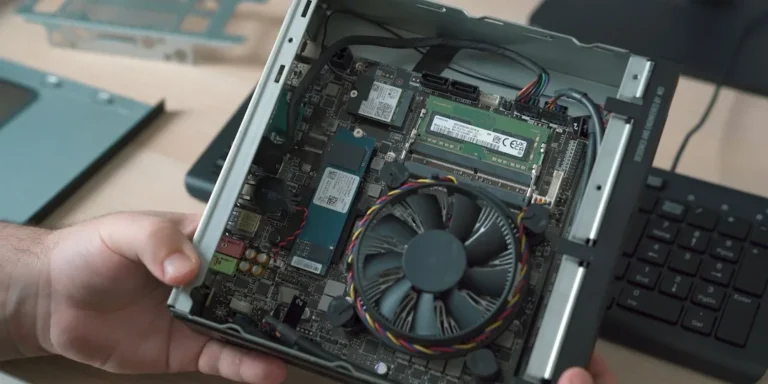
Intel N100 Mini PC (16GB RAM, 500GB SSD)
Whisper-quiet, ultra-low 6W idle power. The undisputed favorite for 24/7 Docker, Jellyfin hardware transcoding, and Proxmox.
Raspberry Pi 5 (8GB Starter Kit)
Blazing quad-core ARM performance. Ideal for dedicated Pi-hole ad-blocking, WireGuard mesh nodes, and lightweight automation.
Crucial P3 Plus 1TB/2TB PCIe 4.0 NVMe
Up to 5000MB/s speeds. Essential for high-IOPS database operations, Docker container images, and snappy Nextcloud sync.
TP-Link 8-Port Gigabit Switch (TL-SG108)
Silent fanless steel housing, plug-and-play, traffic prioritization (QoS). Essential for wiring up your Home Server, NAS, and Pi with zero Wi-Fi lag.
Disclosure: BriteHacks is reader-supported. When you buy through links on our site or deploy infrastructure, we may earn an affiliate commission at no extra cost to you. As an Amazon Associate, we earn from qualifying purchases.