A weak wireless signal can instantly disrupt productivity, streaming, and daily internet usage. Understanding how to boost home Wi-Fi speed coverage fixes is essential for optimizing your home network architecture. Whether you are dealing with dead zones in multi-story houses or severe latency spikes, implementing targeted networking strategies can drastically improve performance without necessarily upgrading your internet service plan.
Understanding Wireless Signal Attenuation
Before implementing fixes, it is crucial to understand why wireless signals degrade. Wi-Fi relies on radio frequency (RF) waves—typically operating on the 2.4 GHz and 5 GHz bands. These waves suffer from attenuation, meaning their strength decreases as they travel through space and physical obstacles.
Common interference factors include:
7 Proven Fixes to Optimize Your Home Wi-Fi
1. Relocate Your Wireless Router to a Central Position
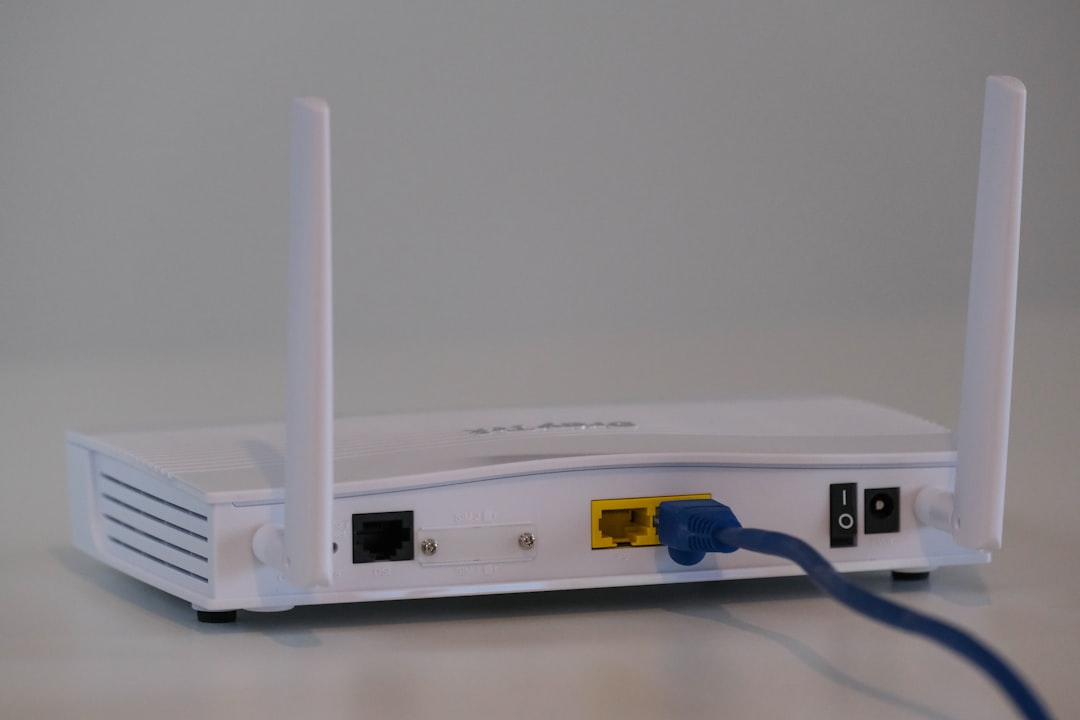
The physical placement of your router dictates its radiation pattern. Placing a router in a corner, inside a media cabinet, or on the floor restricts coverage. Mount or place the router in a central, elevated location within your home to ensure signals radiate evenly in all directions.
2. Switch Between 2.4 GHz and 5 GHz Bands Wisely
Modern routers are dual-band or tri-band. It is vital to assign devices correctly:
3. Change Your Wireless Channel
Wireless congestion occurs when multiple networks compete for the same frequency channel. Use a Wi-Fi analyzer tool to scan your environment and manually switch your router’s channel to a less congested spectrum (such as channels 1, 6, or 11 on the 2.4 GHz band, or non-overlapping channels on the 5 GHz band).
4. Update Your Router Firmware
Manufacturers regularly release firmware updates that patch security vulnerabilities, optimize packet processing efficiency, and improve hardware stability. Log into your router’s administrative dashboard periodically to check for updates or enable automatic updates.
5. Upgrade Network Interface Cards (NICs) and Antennas
Sometimes the bottleneck is not the router, but the receiving device. Ensure your computers and laptops utilize modern Wi-Fi standards (such as Wi-Fi 6 or Wi-Fi 6E) with up-to-date drivers. If your router uses external, adjustable antennas, position one vertically and another horizontally to better match device polarization.
6. Implement a Mesh Wi-Fi System
Traditional range repeaters cut your available bandwidth in half because they must simultaneously receive and retransmit data. In contrast, a Mesh Wi-Fi system uses a primary router paired with multiple satellite nodes to create a seamless, unified wireless fabric across large spaces without bandwidth degradation.
7. Prioritize Hardwired Ethernet Connections
Wireless is convenient, but mission-critical stationary devices—such as desktop computers, smart TVs, and NAS drives—benefit immensely from physical connections. Use CAT6 or CAT6a Ethernet cables to offload heavy bandwidth users from the wireless spectrum entirely.
Frequently Asked Questions
Do Wi-Fi extenders actually work?
Traditional Wi-Fi extenders do work, but they introduce latency and reduce throughput by roughly 50%. For larger homes, mesh systems are far superior because they maintain full network speeds across multiple access points.
How can I test my true wireless speed?
To accurately diagnose your network, run a speed test when standing close to the router, and compare it with results from your dead zones. Ensure you test using wired connections first to isolate ISP bottlenecks from local Wi-Fi interference.
Is it time to upgrade my router?
If your router is more than five years old, it likely lacks support for modern protocols like WPA3 security, MU-MIMO, and OFDMA. Upgrading to modern hardware ensures compatibility with newer devices and dramatically improves network capacity.
Conclusion
Optimizing your home network does not always require purchasing expensive hardware. By strategically repositioning your router, managing frequency bands, mitigating physical interference, and adopting modern technologies like mesh networking, you can eliminate dead zones and achieve blazing-fast speeds. Start auditing your home network setup today to unlock maximum wireless performance.
Recommended Hardware for This Setup
Tested, power-efficient gear curated for 24/7 home servers, Docker containers, and local labs.

Intel N100 Mini PC (16GB RAM, 500GB SSD)
Whisper-quiet, ultra-low 6W idle power. The undisputed favorite for 24/7 Docker, Jellyfin hardware transcoding, and Proxmox.
Raspberry Pi 5 (8GB Starter Kit)
Blazing quad-core ARM performance. Ideal for dedicated Pi-hole ad-blocking, WireGuard mesh nodes, and lightweight automation.
Crucial P3 Plus 1TB/2TB PCIe 4.0 NVMe
Up to 5000MB/s speeds. Essential for high-IOPS database operations, Docker container images, and snappy Nextcloud sync.
TP-Link 8-Port Gigabit Switch (TL-SG108)
Silent fanless steel housing, plug-and-play, traffic prioritization (QoS). Essential for wiring up your Home Server, NAS, and Pi with zero Wi-Fi lag.
Disclosure: BriteHacks is reader-supported. When you buy through links on our site or deploy infrastructure, we may earn an affiliate commission at no extra cost to you. As an Amazon Associate, we earn from qualifying purchases.